> ## Documentation Index
> Fetch the complete documentation index at: https://docs.userjourneys.ai/llms.txt
> Use this file to discover all available pages before exploring further.
# Amplitude Setup
> Find your Amplitude project keys and connect them to userjourneys.ai
Connect the Amplitude project that contains the event history you want to analyze. You do not need to create a new Amplitude project unless you want to test with a separate sandbox first.
Do not send API keys or secret keys in email, Slack, Linear, or support chat. Use the secure UserJourneys connection link your contact gives you, your company's password manager, or another approved secret-sharing tool.
## Before you start
Open the secure UserJourneys connection link your contact gave you. Keep it open while you follow this guide.
The connection form asks for:
* Amplitude API key
* Amplitude secret key
You do not need to enter the Amplitude project name, project ID, or data region. UserJourneys detects the region from the key pair.
## What you need
* An Amplitude project API key
* An Amplitude project secret key
* Permission to send one validation event, if you want us to verify the full ingest path
## Find your Amplitude keys
Open your Amplitude workspace:
* US workspace: app.amplitude.com/login
* EU workspace: app.eu.amplitude.com/login
Click the gear icon in the top-right, then select **Organization settings**.
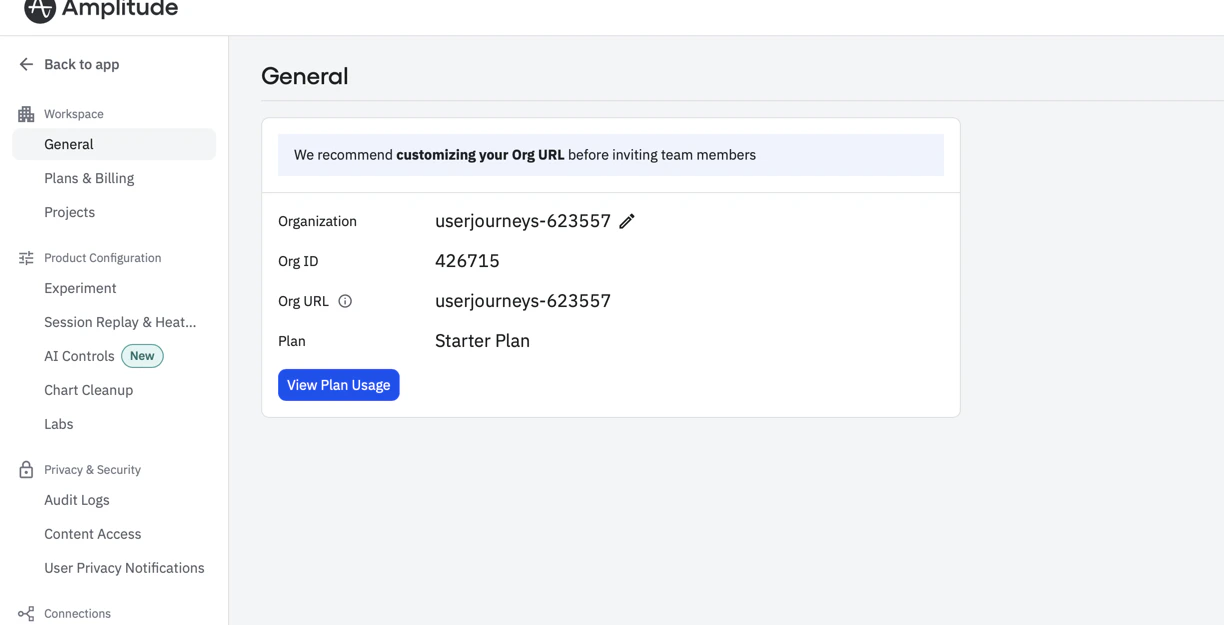 Select **Projects** in the left sidebar.
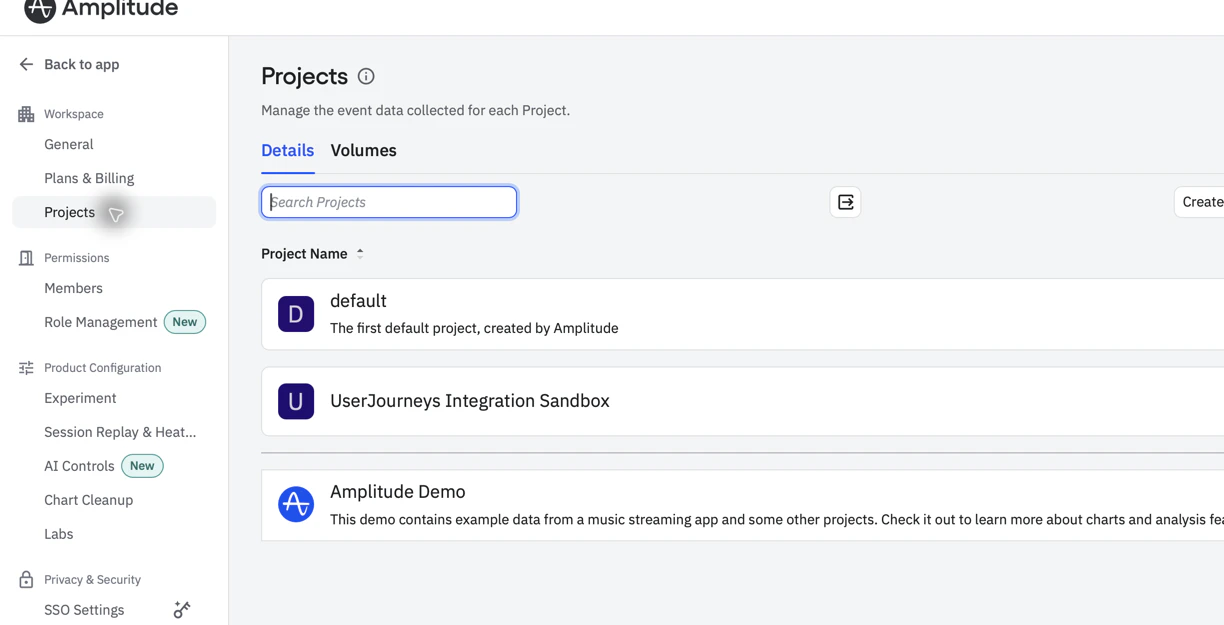 Select the project that contains the event data you want UserJourneys to analyze.
In the project's **General** tab, find **Project Details**.
Click **Show** next to **Secret Key**, then paste that value into the UserJourneys connection form.
Select the project that contains the event data you want UserJourneys to analyze.
In the project's **General** tab, find **Project Details**.
Click **Show** next to **Secret Key**, then paste that value into the UserJourneys connection form.
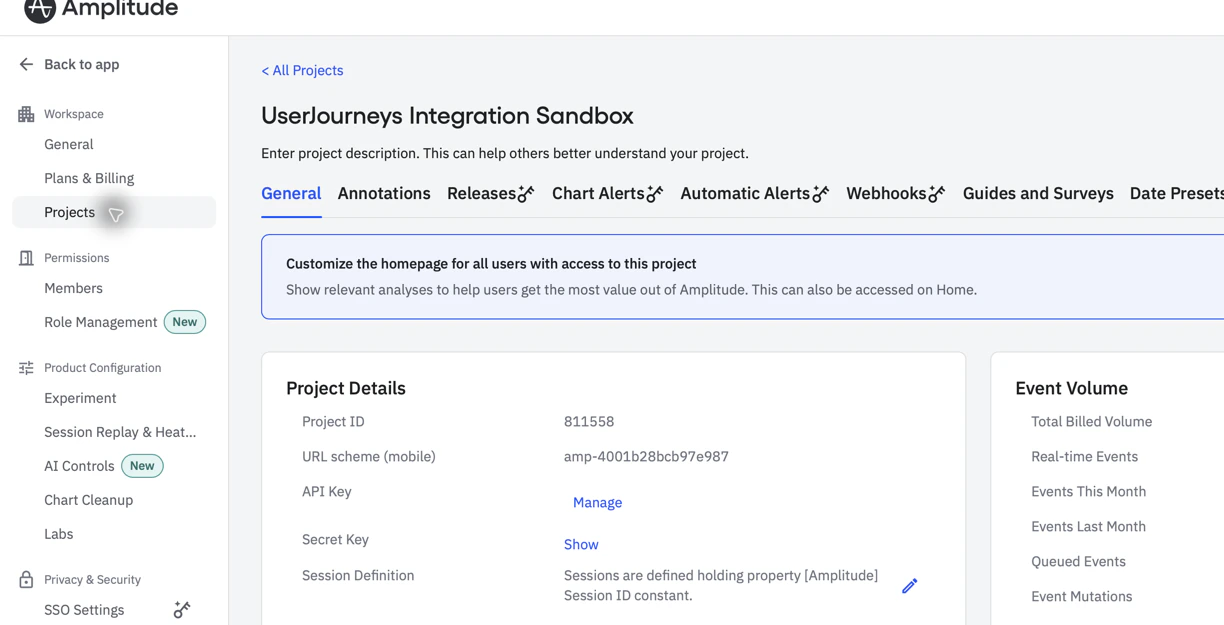 Treat the secret key like a password. Anyone with the API key and secret key can export project event data.
Click **Manage** next to **API Key**. On **API and Secret Keys**, copy the key value for the same project and paste it into the UserJourneys connection form.
Submit the form after both values are filled in.
After we receive the keys, we validate that the Export API can read settled hourly event exports before enabling ingestion.
## Validation event
For a brand-new or empty Amplitude project, we may ask permission to send one synthetic validation event. Amplitude accepts the event immediately, but the Export API can take a few hours before the event appears in hourly exports.
For a project that already has historical events, we can usually validate the read path immediately using older settled export hours.
## Troubleshooting
Use an Amplitude account that can view project keys, then reopen the project's General tab.
You do not need to provide the region. UserJourneys tests both Export API regions and uses the one that authenticates.
Tell us your approximate events per day, and whether any single hour can exceed 4 GB of compressed export data. If hourly Export API reads are too large, we will discuss an existing warehouse export path instead.
Treat the secret key like a password. Anyone with the API key and secret key can export project event data.
Click **Manage** next to **API Key**. On **API and Secret Keys**, copy the key value for the same project and paste it into the UserJourneys connection form.
Submit the form after both values are filled in.
After we receive the keys, we validate that the Export API can read settled hourly event exports before enabling ingestion.
## Validation event
For a brand-new or empty Amplitude project, we may ask permission to send one synthetic validation event. Amplitude accepts the event immediately, but the Export API can take a few hours before the event appears in hourly exports.
For a project that already has historical events, we can usually validate the read path immediately using older settled export hours.
## Troubleshooting
Use an Amplitude account that can view project keys, then reopen the project's General tab.
You do not need to provide the region. UserJourneys tests both Export API regions and uses the one that authenticates.
Tell us your approximate events per day, and whether any single hour can exceed 4 GB of compressed export data. If hourly Export API reads are too large, we will discuss an existing warehouse export path instead.