PostHog integration is required for the Visual Funnel Builder, available on the Pro plan.

Creating your API key

1

Navigate to PostHog API settings

Go to eu.posthog.com/settings/user-api-keys.
If your project is in the US, change the URL prefix to us.posthog.com.
2

Click Create key

Open the Personal API keys section and select Create personal API key.
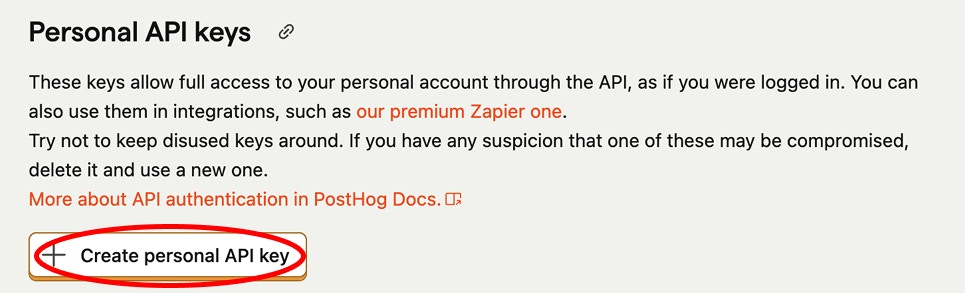
PostHog API Keys settings page showing the Create personal API key button
3

Fill in the form

  • Select Projects
  • Choose the project you want to integrate
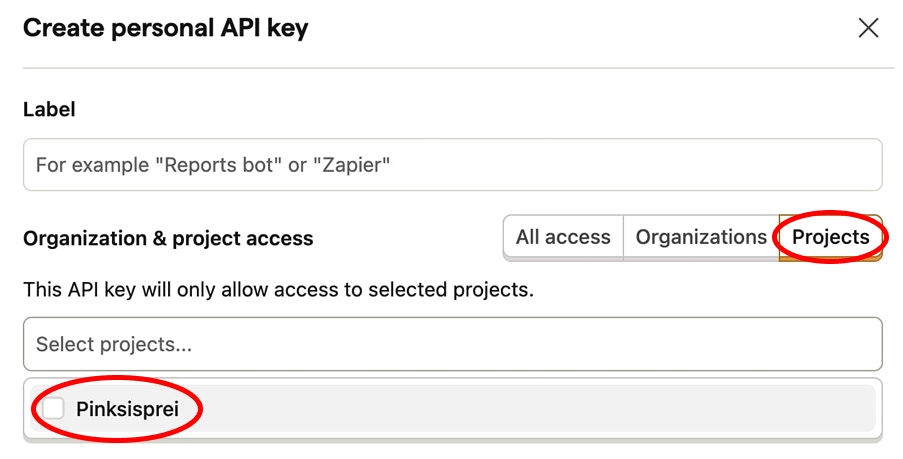
Create personal API key form showing project selection and access tabs
4

Set access permissions

Select MCP Server from the Scopes dropdown.
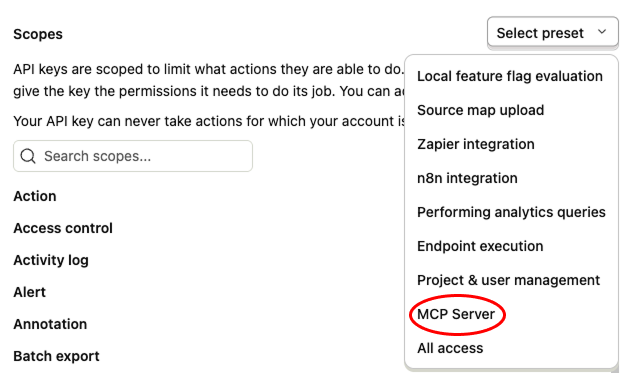
PostHog Scopes dropdown with MCP Server selected
Then add WRITE access for Actions.
PostHog access settings showing write access for Actions
5

Create and copy your API key

Click Create key and paste it into the form in your project settings.
6

Copy Project ID from URL

Find your project ID in the URL. For example:
https://[eu/us].posthog.com/project/48510/settings/user-api-keys
In this example, 48510 is the project ID. Copy your project ID into the form in your project settings.
7

Test Connection

Click Test Connection to verify everything works. Replays will begin streaming immediately.
A successful test connection message
You’re all set